
 打赏
打赏
Energy 是最新发现的又一个GUI框架,基于Chrome网页.实现了跨平台:Win/Linux/Mac
环境安装
提示了自己的环境工具: https://energye.github.io/course/cli-download
energy env 查看环境
energy install 安装开发环境
不因为某此问题不能安装时,设置代理: energy env -w proxy:http://ip:port
energy build 构建执行程序, 需要将程序放到 CEF 目录中. 在Win中是 CEF-136_WINDOWS_64 目录, 目录内放必须的库文件之类.
energy package 构建安装包
energy update 更新 energy 发行版本和 LibLCL 库
它编译后的文件,必须放到CEF目录内才能正常运行.
试了WSL中的Ubuntu环境下,也能正常运行.
LCL: 原生控件库,它是框架默认使用的方式
VF: 是CEF的窗口显示组件,它是框架在Linux系统中采用Gtk3时默认使用的方式
如果使用VF窗口模式,将无法使用LCL控件库. LCL窗口模式则没有限制,但LCL在Linux当前需要在Gtk2下才可以使用控件库.
CEF (Chromium Embedded Framework)
简单的示例:
package main

import (
	"github.com/energye/energy/v2/cef"
)

func main() {
	//全局初始化 每个应用都必须调用的
	cef.GlobalInit(nil, nil)
	//创建应用
	cefApp := cef.NewApplication()
	//主窗口的配置
	//指定一个URL地址,或本地html文件目录
	cef.BrowserWindow.Config.Url = "https://www.baidu.com"
	//运行应用
	cef.Run(cefApp)
}
看来起来代码也很简单.只要实现出以下几点,也就象单独的可执行谁的了.
- 托盘
- 菜单(右键菜单)
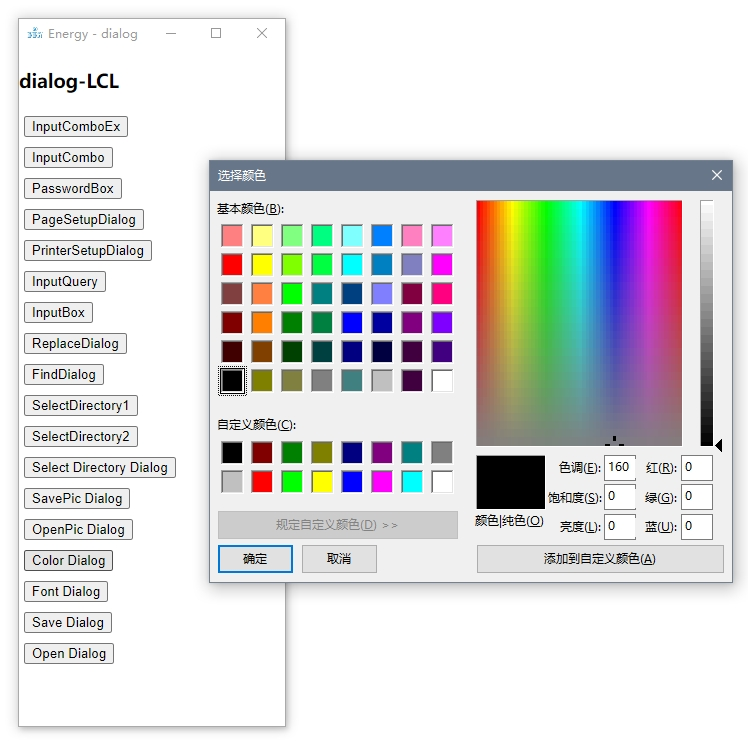
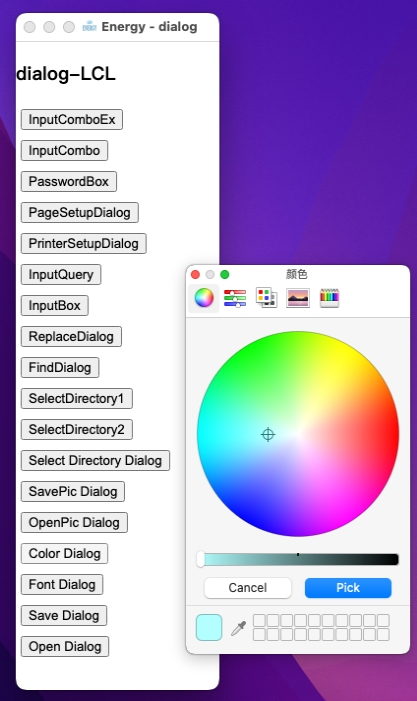
- 常见子窗口(打开文件之类)
- 边框控制
- 透明窗体(这个暂时没看到示例)
示例中看起来它都有了.
或许它也可以作为GUI的备选,毕竟HTML实现GUI是可以很丰富的.
golang与javascript的互动
以下是energy init出来的基础框架代码的一部份,可以看到如何实现代码互动:
<script>
    // JavaScript 处理系统信息
    ipc.on("osInfo", function (os) {
        document.getElementById("osInfo").innerText = os;
    });
    // JavaScript 发送计数自增消息
    let count = 0;
    setInterval(function () {
        count++
        ipc.emit("count", [count]);
    }, 1000)
</script>
func browserInit(event *cef.BrowserEvent, window cef.IBrowserWindow) {
	// index.html 中通过 ipc.emit("count", [count++]) 发送消息
	ipc.On("count", func(value int) {
		println("count", value)
	})
	// 页面加载结束
	event.SetOnLoadEnd(func(sender lcl.IObject, browser *cef.ICefBrowser, frame *cef.ICefFrame, httpStatusCode int32, window cef.IBrowserWindow) {
		// index.html 中通过 ipc.on("osInfo", function(){...}) 接收消息
		println("osInfo", version.OSVersion.ToString())
		ipc.Emit("osInfo", version.OSVersion.ToString())
		var windowType string
		if window.IsLCL() {
			windowType = "LCL"
		} else {
			windowType = "VF"
		}
		// index.html 中通过 ipc.on("windowType", function(){...}) 接收消息
		ipc.Emit("windowType", windowType)
	})
}
ipc.Emit 来触发代码, ipc.On 来响应触发
(仔细读,会发现javascript并没有响应windowType)
cef.BrowserWindow.Config.IconFS = “resources/icon.ico” (设置图标没成功)
cef.BrowserWindow.Config.Url = “https://www.baidu.com” //指定一个URL地址,或本地html文件目录
cef.BrowserWindow.Config.Title = “energy - 这是一个简单的窗口示例” //窗口的标题
cef.BrowserWindow.Config.Width = 1024 //窗口宽高
cef.BrowserWindow.Config.Height = 768
设置icon图标
	if common.IsLinux() && api.WidgetUI().IsGTK3() {
		cef.BrowserWindow.Config.IconFS = "resources/icon.png"
	} else {
		cef.BrowserWindow.Config.IconFS = "resources/icon.ico"
	}
这是常用的,对"浏览器"的控制.
	//创建窗口时的回调函数 对浏览器事件设置,和窗口属性组件等创建和修改
	cef.BrowserWindow.SetBrowserInit(func(event *cef.BrowserEvent, browserWindow cef.IBrowserWindow) {
		fmt.Println("SetBrowserInit")
	})
//chromium配置
config := cef.NewChromiumConfig()
config.SetEnableMenu(true)  // 允许自带的菜单
config.SetEnableDevTools(true) // 允许调试工具
config.SetEnableViewSource(true) // 允许查看源代码
cef.BrowserWindow.Config.SetChromiumConfig(config)
ps: 可以用energy build ,也可以 go build -ldflags “-H windowsgui -s -w” 编译
常用的几个页面事件:
event.SetOnLoadingProgressChange 页面加载进度
event.SetOnLoadingStateChange 页面加载状态
event.SetOnAddressChange 页面地址改变
event.SetOnDownloadUpdated 下载更新事件
在示例:浏览器状态控制中, controlUI可以看到如何通过golang代码,在界面中添加控件,并通过事件获取浏览器信息.
看起来lcl可以实现在golang中添加GUI,而并不需要浏览器来实现.
// 触发js-on-event-demo事件 ipc.Emit(“js-on-event-demo”, fmt.Sprintf(“Go发送的数据: %d”, param0), float64(param0+10)) // 如果JS返回结果, 需要通过回调函数入参方式接收返回值 ipc.EmitAndCallback(“js-on-event-demo-return”, []any{fmt.Sprintf(“Go发送的数据: %d”, param0), float64(param0 + 10)}, func(r1 string) { //需要正确的获取类型,否则会失败 fmt.Println(“JS返回数据:”, r1) })
// 使用上下文获取参数 ipc.On(“go-on-event-demo”, func(context context.IContext) { arguments := context.ArgumentList() fmt.Println(“参数个数:”, arguments.Size()) //参数是以js调用时传递的参数下标位置开始计算,从0开始表示第1个参数 p1 := arguments.GetStringByIndex(0) p2 := arguments.GetIntByIndex(1) p3 := arguments.GetBoolByIndex(2) p4 := arguments.GetFloatByIndex(3) fmt.Println(“参数1:”, p1) })
// 直接对应返回参数 ipc.On(“go-on-event-demo-argument”, func(param1 int, param2 string, param3 float64, param4 bool, param5 string) { })
// javacsript中触发 ipc.emit(‘go-on-event-demo’, [‘传递的数据’])
按键获取示例有误,更正如下. 这里两个方法均可用:
package main

import (
	"embed"
	"fmt"

	"github.com/energye/energy/v2/cef"
	"github.com/energye/energy/v2/consts"
	"github.com/energye/energy/v2/pkgs/assetserve"
	"github.com/energye/golcl/lcl"
)

//go:embed resources
var resources embed.FS

func main() {
	//全局初始化 每个应用都必须调用的
	cef.GlobalInit(nil, &resources)
	//创建应用
	cefApp := cef.NewApplication()
	//指定一个URL地址,或本地html文件目录
	cef.BrowserWindow.Config.Url = "http://localhost:22022/key-event.html"
	cef.BrowserWindow.Config.Title = "Energy - Key Event"
	//在主窗口初始化回调函数里设置浏览器事件
	cef.BrowserWindow.SetBrowserInit(func(event *cef.BrowserEvent, browserWindow cef.IBrowserWindow) {
		event.SetOnKeyEvent(func(sender lcl.IObject, browser *cef.ICefBrowser, event *cef.TCefKeyEvent, osEvent consts.TCefEventHandle, window cef.IBrowserWindow, result *bool) {
			fmt.Printf("%s  KeyEvent:%+v osEvent:%+v\n", string(rune(event.Character)), event, osEvent)
		})
		browserWindow.Chromium().SetOnPreKeyEvent(func(sender lcl.IObject, browser *cef.ICefBrowser, event *cef.TCefKeyEvent, osEvent consts.TCefEventHandle) (isKeyboardShortcut, result bool) {
			fmt.Printf("%s  PreKeyEvent:%+v osEvent:%+v\n", string(rune(event.Character)), event, osEvent)
			return false, false
		})
	})
	//内置http服务链接安全配置
	cef.SetBrowserProcessStartAfterCallback(func(b bool) {
		fmt.Println("主进程启动 创建一个内置http服务")
		//通过内置http服务加载资源
		server := assetserve.NewAssetsHttpServer()
		server.PORT = 22022
		server.AssetsFSName = "resources" //必须设置目录名
		server.Assets = &resources
		go server.StartHttpServer()
	})
	//运行应用
	cef.Run(cefApp)
}
弹出子窗口的处理
		//弹出子窗口
		event.SetOnBeforePopup(func(sender lcl.IObject, browser *cef.ICefBrowser, frame *cef.ICefFrame, beforePopupInfo *cef.BeforePopupInfo, popupWindow cef.IBrowserWindow, noJavascriptAccess *bool) bool {
			fmt.Println("beforePopupInfo-TargetUrl", beforePopupInfo.TargetUrl, strings.Index(beforePopupInfo.TargetUrl, "popup_1"), strings.Index(beforePopupInfo.TargetUrl, "popup_2"))
			if strings.Index(beforePopupInfo.TargetUrl, "popup_1") > 0 {
				popupWindow.SetSize(800, 600)
				popupWindow.HideTitle()
			} else if strings.Index(beforePopupInfo.TargetUrl, "popup_2") > 0 {
				popupWindow.SetSize(300, 300)
			}
			return false
		})
保存页面为PDF
	ipc.On("print-pdf", func(context context.IContext) {
		bw := cef.BrowserWindow.GetWindowInfo(context.BrowserId())
		savePath := path.Join(wd, "test.pdf")
		fmt.Println("当前页面保存为PDF", savePath)
		bw.Chromium().PrintToPDF(savePath)
	})

	cef.BrowserWindow.SetBrowserInit(func(event *cef.BrowserEvent, window cef.IBrowserWindow) {
		window.Chromium().SetOnPdfPrintFinished(func(sender lcl.IObject, ok bool) {
			fmt.Println("OnPdfPrintFinished:", ok)
		})
	})
右键菜单
现示例有误,修正如下:
package main

import (
	"embed"
	"fmt"

	"github.com/energye/energy/v2/cef"
	"github.com/energye/energy/v2/cef/ipc"
	"github.com/energye/energy/v2/consts"
	"github.com/energye/energy/v2/pkgs/assetserve"
	"github.com/energye/golcl/lcl"
)

//go:embed resources
var resources embed.FS

func main() {
	//全局初始化 每个应用都必须调用的
	cef.GlobalInit(nil, &resources)
	//创建应用
	cefApp := cef.NewApplication()
	//指定一个URL地址,或本地html文件目录
	cef.BrowserWindow.Config.Url = "http://localhost:22022/menu.html"

	//主进程启动成功之后回调
	cef.SetBrowserProcessStartAfterCallback(func(b bool) {
		fmt.Println("主进程启动 创建一个内置http服务")
		//通过内置http服务加载资源
		server := assetserve.NewAssetsHttpServer()
		server.PORT = 22022
		server.AssetsFSName = "resources" //必须设置目录名
		server.Assets = &resources
		go server.StartHttpServer()
	})
	//在主窗口初始化监听浏览器事件
	cef.BrowserWindow.SetBrowserInit(func(event *cef.BrowserEvent, window cef.IBrowserWindow) {
		var (
			menuId01           consts.MenuId
			menuId02           consts.MenuId
			menuId03           consts.MenuId
			menuId0301         consts.MenuId
			menuId0302         consts.MenuId
			menuIdCheck        consts.MenuId
			isMenuIdCheck      = true
			menuIdEnable       consts.MenuId
			isMenuIdEnable     = true
			menuIdEnableCtl    consts.MenuId
			menuIdRadio101     consts.MenuId
			menuIdRadio102     consts.MenuId
			menuIdRadio103     consts.MenuId
			radioDefault1Check consts.MenuId
			menuIdRadio201     consts.MenuId
			menuIdRadio202     consts.MenuId
			menuIdRadio203     consts.MenuId
			radioDefault2Check consts.MenuId
		)
		//右键弹出菜单
		event.SetOnBeforeContextMenu(func(sender lcl.IObject, browser *cef.ICefBrowser, frame *cef.ICefFrame, params *cef.ICefContextMenuParams, model *cef.ICefMenuModel, window cef.IBrowserWindow) bool {
			//既然是自定义,当然要去除之前事先定义好的
			model.Clear()
			//开始创建菜单,每个菜单项都有自己的ID, 所以要先定义一个能保存这些菜单项的ID的变量
			fmt.Printf("%+v\n", params)
			//注意: 每个菜单项的ID有固定的 ID 生成函数
			//获取一个菜单项ID
			menuId01 = model.CefMis.NextCommandId()
			model.AddItem(menuId01, "菜单一 html 文字变红色")
			menuId02 = model.CefMis.NextCommandId()
			model.AddItem(menuId02, "菜单二 html 文字变绿色")
			menuId03 = model.CefMis.NextCommandId()
			menu03 := model.AddSubMenu(menuId03, "菜单三 带有子菜单")
			menuId0301 = model.CefMis.NextCommandId()
			menu03.AddItem(menuId0301, "菜单三的子菜单一 ")
			menuId0302 = model.CefMis.NextCommandId()
			menu03.AddItem(menuId0302, "菜单三的子菜单二")
			model.AddSeparator()
			//check
			menuIdCheck = model.CefMis.NextCommandId()
			model.AddCheckItem(menuIdCheck, "这是一个checkItem-好像就windows有效")
			model.SetChecked(menuIdCheck, isMenuIdCheck)
			//enable
			model.AddSeparator()
			menuIdEnable = model.CefMis.NextCommandId()
			if isMenuIdEnable {
				model.AddItem(menuIdEnable, "菜单-已启用")
				// 修复颜色类型不匹配问题
				model.SetColor(menuIdEnable, consts.CEF_MENU_COLOR_TEXT, cef.CefColorSetARGB(255, 111, 12, 200))
			} else {
				model.AddItem(menuIdEnable, "菜单-已禁用")
			}
			model.SetEnabled(menuIdEnable, isMenuIdEnable)
			menuIdEnableCtl = model.CefMis.NextCommandId()
			model.AddItem(menuIdEnableCtl, "启用上面菜单")
			//为什么要用Visible而不是不创建这个菜单? 因为菜单项的ID是动态的啊。
			model.SetVisible(menuIdEnableCtl, !isMenuIdEnable)
			if !isMenuIdEnable {
				// 修复颜色类型不匹配问题
				model.SetColor(menuIdEnableCtl, consts.CEF_MENU_COLOR_TEXT, cef.CefColorSetARGB(255, 222, 111, 0))
			}
			model.AddSeparator()
			//radio 1组
			menuIdRadio101 = model.CefMis.NextCommandId()
			menuIdRadio102 = model.CefMis.NextCommandId()
			menuIdRadio103 = model.CefMis.NextCommandId()
			model.AddRadioItem(menuIdRadio101, "单选按钮 1 1组", 1001)
			model.AddRadioItem(menuIdRadio102, "单选按钮 2 1组", 1001)
			model.AddRadioItem(menuIdRadio103, "单选按钮 3 1组", 1001)
			if radioDefault1Check == 0 {
				radioDefault1Check = menuIdRadio101
			}
			model.SetChecked(radioDefault1Check, true)
			model.AddSeparator()
			//radio 2组
			menuIdRadio201 = model.CefMis.NextCommandId()
			menuIdRadio202 = model.CefMis.NextCommandId()
			menuIdRadio203 = model.CefMis.NextCommandId()
			model.AddRadioItem(menuIdRadio201, "单选按钮 1 2组", 1002)
			model.AddRadioItem(menuIdRadio202, "单选按钮 2 2组", 1002)
			model.AddRadioItem(menuIdRadio203, "单选按钮 3 2组", 1002)
			if radioDefault2Check == 0 {
				radioDefault2Check = menuIdRadio201
			}
			model.SetChecked(radioDefault2Check, true)
			return true
		})
		//右键菜单项命令
		event.SetOnContextMenuCommand(func(sender lcl.IObject, browser *cef.ICefBrowser, frame *cef.ICefFrame, params *cef.ICefContextMenuParams, menuId consts.MenuId, eventFlags uint32, window cef.IBrowserWindow) bool {
			fmt.Printf("params: %+v\n", params)
			fmt.Println("menuId: ", menuId, eventFlags)
			//在这里处理某个菜单项的点击事件所触发的命令,这里的命令对应着一个菜单项的ID
			var clickMenuId = 0
			switch menuId {
			case menuId01:
				clickMenuId = 1
			case menuId02:
				clickMenuId = 2
			case menuIdEnable:
				isMenuIdEnable = !isMenuIdEnable
			case menuIdCheck:
				isMenuIdCheck = !isMenuIdCheck
			case menuIdEnableCtl:
				isMenuIdEnable = true
			case menuIdRadio101, menuIdRadio102, menuIdRadio103:
				radioDefault1Check = menuId
			case menuIdRadio201, menuIdRadio202, menuIdRadio203:
				radioDefault2Check = menuId
			}
			ipc.Emit("menu", clickMenuId, fmt.Sprintf("菜单 %d 随便传点什么吧 但是,字符串参数字符串参数字符串参数字符串参数字符串参数字符串参数字符串参数.", menuId))
			return true
		})
	})
	//运行应用
	cef.Run(cefApp)
}
<!DOCTYPE html>
<html lang="en">
<head>
    <meta charset="UTF-8">
    <title>browser-context-menu</title>
    <style>
    </style>
    <script type="application/javascript">
        ipc.on('menu', function (menuId, param2) {
            console.log(menuId, param2);
            let menu = document.getElementById("menu")
            if (menuId === 1) {
                menu.style.color = "red"
            } else if (menuId === 2) {
                menu.style.color = "green"
            } else {
                menu.innerHTML += param2 + "<br>"
            }
        })
    </script>
</head>
<body style="overflow: hidden;margin: 0px;padding: 0px;width: 100%;text-align: center;">
<h3 id="menu">自定义右键菜单</h3>
</body>
</html>
无边框窗体
cef.BrowserWindow.Config.EnableHideCaption = true
css设置 -webkit-app-region: drag;
菜单
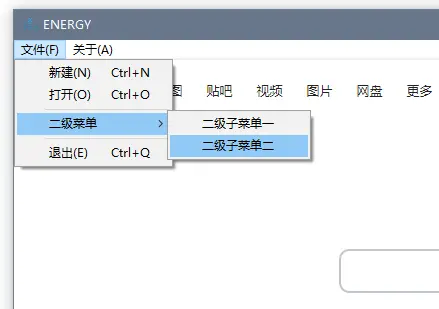
示例debug_most.go中
	mainMenu := lcl.NewMainMenu(m)
	// 创建一级菜单
	fileClassA := lcl.NewMenuItem(m)
	fileClassA.SetCaption("文件(&F)") //菜单名称 alt + f
	aboutClassA := lcl.NewMenuItem(m)
	aboutClassA.SetCaption("关于(&A)")

	var createMenuItem = func(label, shortCut string, click func(lcl.IObject)) (result *lcl.TMenuItem) {
		result = lcl.NewMenuItem(m)
		result.SetCaption(label)               //菜单项显示的文字
		result.SetShortCutFromString(shortCut) // 快捷键
		result.SetOnClick(click)               // 触发事件,回调函数
		return
	}
	// 给一级菜单添加菜单项
	createItem := createMenuItem("新建(&N)", "Meta+N", func(lcl.IObject) {
		fmt.Println("单击了新建")
	})
	fileClassA.Add(createItem) // 把创建好的菜单项添加到 第一个菜单中
	openItem := createMenuItem("打开(&O)", "Meta+O", func(lcl.IObject) {
		fmt.Println("单击了打开")
	})
	fileClassA.Add(openItem) // 把创建好的菜单项添加到 第一个菜单中
	mainMenu.Items().Add(fileClassA)
	mainMenu.Items().Add(aboutClassA)
拖拽文件
		event.SetOnDragEnter(func(sender lcl.IObject, browser *cef.ICefBrowser, dragData *cef.ICefDragData, mask consts.TCefDragOperations, window cef.IBrowserWindow, result *bool) {
			if mask&consts.DRAG_OPERATION_LINK == consts.DRAG_OPERATION_LINK {
				fmt.Println("SetOnDragEnter", mask&consts.DRAG_OPERATION_LINK, dragData.IsLink(), dragData.IsFile(), "GetFileName:", dragData.GetFileName(), "GetFileNames:", dragData.GetFileNames())
				*result = false
			} else {
				*result = true
			}
		})
浏览器准备好后,运行一个代码(Golang插入Javascript代码)
	cef.BrowserWindow.SetBrowserInit(func(event *cef.BrowserEvent, window cef.IBrowserWindow) {
		window.Chromium().SetOnLoadEnd(func(sender lcl.IObject, browser *cef.ICefBrowser, frame *cef.ICefFrame, httpStatusCode int32) {
			var jsCode = `
(function(){
	console.log("执行");
})();
`
			window.Chromium().ExecuteJavaScript(jsCode, "", frame, 0)
		})
	})
弹出对话框
		// 系统消息提示框目前仅能在LCL窗口组件下使用
		// LCL 各种系统组件需要在UI线程中执行, 但ipc.on非UI线程
		// 所以需要使用 QueueAsyncCall 包裹在UI线程中执行
		ipc.On("showmsgbox", func() {
			fmt.Println("showmsgbox")
			window.RunOnMainThread(func() {
				fmt.Println("消息提示框")
				lcl.ShowMessage("消息提示框")
			})
		})
		ipc.On("showmsgbox-confirm", func() {
			// lcl 各种系统组件需要在UI线程中执行, 但ipc.on非UI线程
			// 所以需要使用 QueueAsyncCall 包裹在UI线程中执行
			window.RunOnMainThread(func() {
				if lcl.Application.MessageBox("消息", "标题", win.MB_OKCANCEL+win.MB_ICONINFORMATION) == types.IdOK {
					lcl.ShowMessage("你点击了“是")
				}
			})
		})
向右键添加菜单
在示例proxxy.go中,可以看到如何向已有的右键菜单中添加新项
	// 使用右键菜单切换需要代理的 url
		var (
			loadEnergyUrl consts.MenuId
			loadBaiduUrl  consts.MenuId
		)
		event.SetOnBeforeContextMenu(func(sender lcl.IObject, browser *cef.ICefBrowser, frame *cef.ICefFrame, params *cef.ICefContextMenuParams, model *cef.ICefMenuModel, window cef.IBrowserWindow) bool {
			model.AddSeparator()
			loadEnergyUrl = model.CefMis.NextCommandId()
			model.AddCheckItem(loadEnergyUrl, "load-energy")
			loadBaiduUrl = model.CefMis.NextCommandId()
			model.AddCheckItem(loadBaiduUrl, "load-baidu")
			return true
		})
		event.SetOnContextMenuCommand(func(sender lcl.IObject, browser *cef.ICefBrowser, frame *cef.ICefFrame, params *cef.ICefContextMenuParams, commandId consts.MenuId, eventFlags uint32, window cef.IBrowserWindow) bool {
			if commandId == loadEnergyUrl {
				window.Chromium().LoadUrl("https://energy.yanghy.cn")
			} else if commandId == loadBaiduUrl {
				window.Chromium().LoadUrl("https://www.baidu.com")
			}
			return true
		})